Disclamer: This works only with ESX 3.x and ESX 4.x servers and DOES NOT WORK ON EXSi server. The procedure below performs a password reset. It "blindly" replaces the existing root password with a new one. This is not password recovery. That is, it does not allow you to learn the original root password. VMware does not provide tools or methods to recover the original root password of an ESX host.
Problem: Sometime an administrator can forget the Root (admin) password for VMware ESX server. This post provides a solution to the problem of having a lost password for the root account on an ESX host.
If you forgot your ESX Server Root Password and try to login through the console, you will get the error message shown in figure below.

Solution: To solve this issue, you will need to reset the Root password to be able to login to the ESX server Console. To change the password for the root user, you must reboot the ESX Server host into service console only in single-user mode. To do this, follow the steps below appropriate for your version of ESX:
- Power off the Server: Since you do not have access to the console to gracefully reboot the server, you will have to physically reboot the server. If you are running the ESX server on VM, you can reboot it from the VM console.
- When the GRUB screen appears, press the space bar to stop the server from automatically booting into VMware ESX .
- Use the arrow keys to select Troubleshooting Mode option.

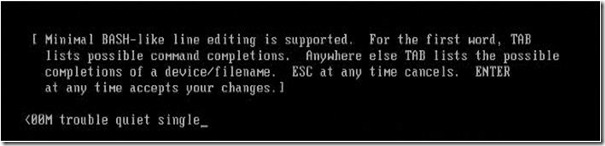
4. Press the "a" (without the quotes) key to modify the kernel arguments (boot options).
5. On the line presented, type a space followed by the word "single" (without the quotes).
Note: In this mode (Single User Mode), no user will be able to access the server, only you (the administrator/Root) on the console will be able to access the server.
6. Press Enter. The server continues to boot into single-user mode.
7. When presented with a bash prompt such as sh-2.05b#, type the command "passwd" (without the quotes) and press Enter. Please note that it is NOT "Password"


8. Follow the prompts to set a new root user password. Conform the new password by re-typing it when prompted. If you are successfull, you will see the following message: "passwd: all authentication tokens updated successfully"

9. When the password is changed successfully, reboot the host using the command "reboot" ( witout the quote) and allow VMware ESX Server to boot normally.
When the system is finished booting up, you can log in as the root user using the new password.

